Documentation menu
Ask Spear on the page
Investigate metrics, dashboards and machines with the context of the page you are viewing.
Select Ask Spear in Metrics Explorer, a dashboard (including Home), or a
machine detail page, or beside the custom script editor to open Spear Assistant beside your work. You need
ai:read; access to measurements and actions also depends on your resource
permissions. Configure the account model in AI & MCP.
Start with the evidence on screen
Ask a specific question, such as “Why did this query fail?” or “Compare this machine’s CPU and network activity during the selected window.” Each message saves a snapshot of the current page:
- Metrics Explorer distinguishes the editor draft, submitted query, displayed results, errors and result time window.
- Dashboards include visible panels, active tabs, filters, zoom bounds and the current panel editor draft. Large snapshots identify omitted entries.
- Machine pages include the machine identity, source identities, available tabs and freshness information. Individual panels can refresh at different times.
- Custom script editors include the current language, unsaved source or bundle, arguments, credential-reference names and schedule. Large fields are marked as excerpts; secret values must never be entered in source, arguments or chat.
The assistant can fetch additional measurements with its tools. A dashboard snapshot describes its queries and view state; it is not a copy of every plotted point. Check the cited window and source before treating an answer as evidence.
Write a custom script
For custom script coding help, Spear uses the Custom Script specialist and the SDK reference, backed by bundled SDK source. Copy its suggested code into the editor and review before saving. It does not run the script or verify which interpreter and grants are deployed on an agent.
Apply a suggested query
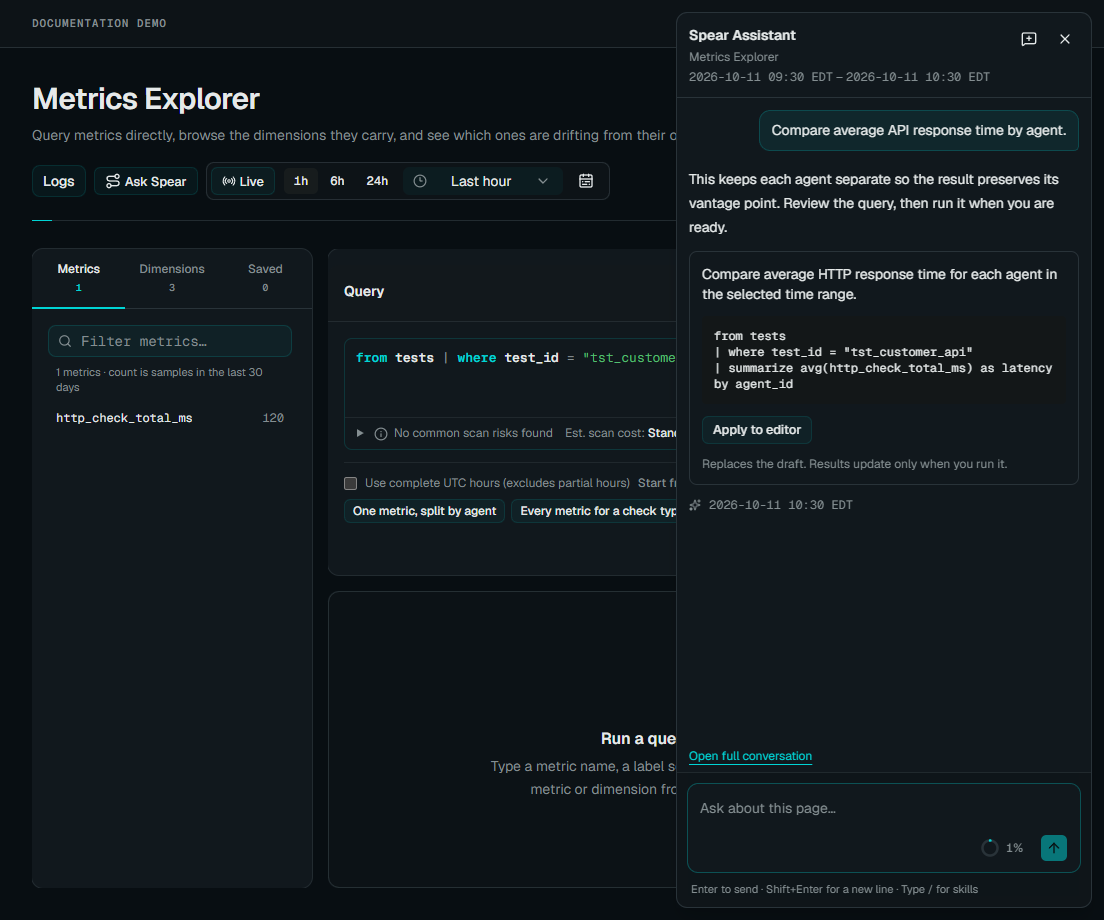
In Metrics Explorer, ask for a query or an explanation of an error. The assistant can inspect the metric catalog and language reference, validate a query, and run queries within the usual account limits. Validation checks syntax and supported operations; it does not prove matching data exists.
A query suggestion can be applied to the editor draft. You choose Run to execute that draft. A suggestion cannot overwrite a draft edited since the proposal, and cannot be applied from the full conversation page. If it is stale, ask again using the current editor state.
 Enlarge screenshot
Dashboard and machine assistance uses the existing investigation tools and supported actions. Opening the panel does not automatically edit a dashboard or control a machine.
Specialist agents and activity
For larger tasks, Spear can delegate focused work to specialist agents:
- Query discovers metrics, writes and validates MetricQL, and reads results.
- Custom Script writes, reviews and debugs custom checks using the bundled RouteSpear SDK, including metrics, arguments, credentials and runtime limits.
- Visualization designs supporting charts for Spear to display.
- Documentation reads the product guides bundled with the portal API.
- Investigation examines incidents and measurement evidence.
- Configuration drafts tests, dashboards and alert changes for review.
- Verification checks claims against evidence and identifies gaps.
- Web Research searches public sources through Brave and reads relevant pages.
Spear chooses specialists as needed and brings their findings into one answer. They use the conversation’s selected model and your existing permissions. Their work counts toward the reply’s usage and execution limits. Simple questions can use tools directly, except documentation requests, which use the Documentation agent even when you only need a link. Specialists cannot execute configuration changes; Spear still presents proposed writes through the normal approval flow.
Answers include descriptive source links beside the claims they support. Product documentation links open the public guide; web citations link to the retrieved source. Source details remain available in the agent activity as well.
Each agent appears in a collapsed activity row. Expand it to see its task, findings, limitations, sources and tool details. Incomplete, Failed, and Stopped indicate that the subtask did not finish. Consecutive ordinary tool calls are grouped under Ran 4 tools, keeping the answer readable.
Web Research is available when the platform operator configures the shared Brave credential. Users do not supply their own search keys. Searches use public vendor, product or protocol topics; private conversation history, page snapshots and internal tool evidence are not passed to the research agent. Do not include private information in a public search request. Source details distinguish read pages from search excerpts and show dates when available. Public reports provide context; they do not establish what happened in your network.
Keep the conversation
The context wheel beside Send opens a breakdown of instructions, conversation, tool results, tool definitions, images, and space reserved for the reply. It uses the server’s conservative budget estimate, not billing token totals. A percentage is shown when the selected context budget or model limit is known.
Choose Compact context in the popover to summarize earlier messages for future replies. The full conversation stays visible, with an expandable saved summary marking the compaction. Finish any active reply, question, or approval before compacting. The control is also available in the full Spear Assistant.
Closing the panel or moving between supported pages keeps the page conversation during the current app session. The next message uses the new page; earlier messages retain their original snapshots. Saved conversations remain available in Spear Assistant after a reload. Conversations are scoped to your user and organization.
For reusable investigations, use skills. Proposed writes use the change approval flow, including when they originate in Ask Spear.