Documentation menu
Test scheduling and automation
Apply reusable test policies to existing groups for automatic agent assignment, running hours, and alert or metric conditions.
Use Configure → Test automation to control where existing test groups run and when they may collect measurements. A test policy can combine automatic agent assignment, a running schedule, and conditions based on health rules. You can use any of these controls on its own.
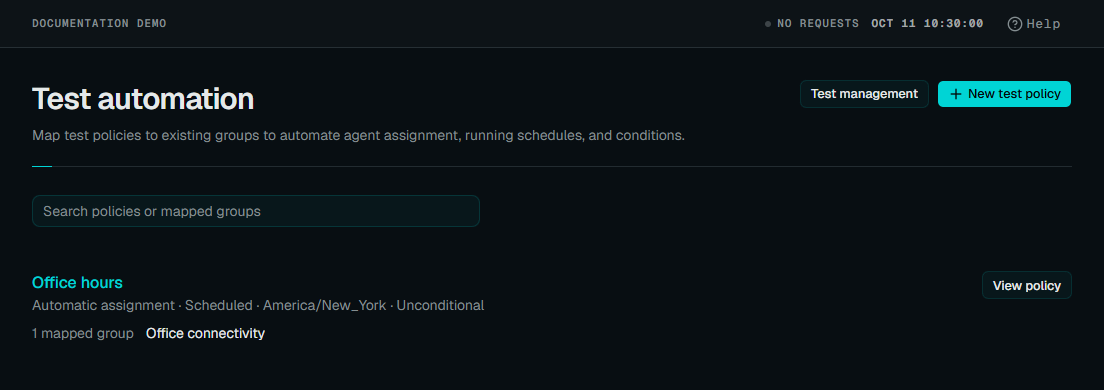 Enlarge screenshot
A check’s interval determines how often it runs. A policy’s running schedule determines the hours in which it may run. For example, an HTTP check with a 60-second interval and a weekday 09:00–17:00 schedule keeps that interval during those hours. The schedule does not create a single daily run or replay runs missed while the check was paused.
Create a test policy
- Create the checks you need in Configure → Test management, or choose existing groups. See creating a test.
- Open Configure → Test automation → New test policy and give it a name that describes its purpose, such as “Branch diagnostics during office hours”.
- Select one or more Test groups. Each group can belong to one policy. A group already mapped to another policy must be removed from that policy before you can select it here.
- Enable Automatic assignment, Running schedule, or Run while conditions are met, and configure the controls below.
- Choose Preview matches & schedule to inspect matching agents, current eligibility, and upcoming windows. Preview again after changing the draft.
- Choose Save policy. The policy applies to every mapped group; their existing checks, settings, and measurement history stay with those groups.
Create new test group is optional. It opens the test form and selects the new group in your policy draft. Its checks need a saved policy with automatic assignment or explicit agent assignments before they can run.
Viewing policies requires test-read access; creating, editing, and deleting them requires test-management access. Agent-read access is needed for automatic assignment, alert-read access for conditions, and alert-management access to create a metric condition.
Set running hours
Turn on Running schedule and choose a named time zone, such as
America/New_York or UTC. The schedule applies to every check in every mapped
group, including checks with explicit agent assignments.
Start with Weekdays, 9–5, Every night, 10–6, or All day, every day, then adjust the settings:
- Time windows: choose weekdays and From / Until times. Multiple windows combine: a check may run whenever any window allows it. Up to 32 windows are supported.
- Start date / End date: optional, inclusive dates in the policy’s time zone. With no windows, all hours within these bounds are allowed.
- Repeat every (weeks): choose 1–52 weeks. For a repeating window longer than one week, Week containing anchors the cycle to the Monday-based week containing that date.
- Excluded dates: add
YYYY-MM-DDdates as removable chips to exclude entire local days, including overnight spillover.
An overnight window belongs to its starting weekday. Friday 22:00–06:00 allows Friday night through Saturday morning. Excluding Saturday stops that window at midnight; excluding Friday also removes its Saturday spillover. Equal start and end times allow 24 hours. Start and end date bounds still restrict the actual local dates on which work is allowed.
Daylight-saving changes follow local wall time: skipped minutes do not run, and repeated minutes may run twice. Preview shows up to eight intervals in the next 15 days. A later start date or a long repeat cycle can therefore produce an empty preview even when the schedule is valid.
Example: office hours with a holiday
For checks that should run Monday through Friday, 09:00–17:00 in New York:
- Enable Running schedule and set Time zone to
America/New_York. - Choose Weekdays, 9–5 and leave Repeat every (weeks) at
1. - Add
2026-12-25to Excluded dates if that day should have no collection. - Preview the upcoming windows, then save.
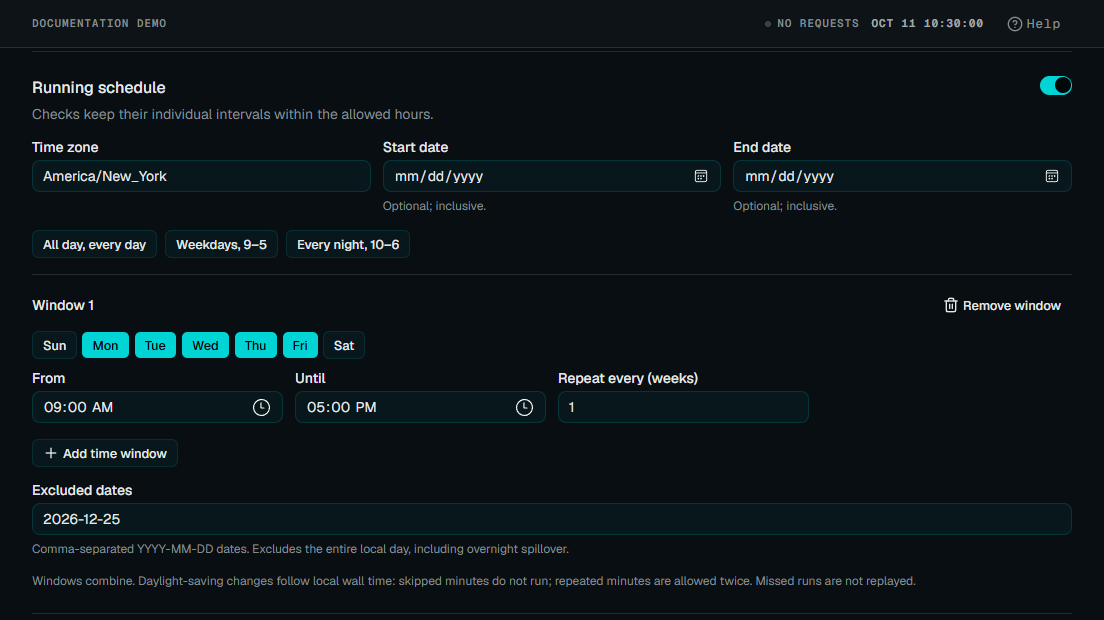 Enlarge screenshot
Keep automatic assignment off if the groups should retain only their existing explicit placement. Keep conditional execution off if they should run throughout every allowed window.
Assign matching private agents
Enable Automatic assignment to give checks to each compatible, active private agent that matches the policy. Choose Every private agent, All conditions, or Any condition.
Conditions can match os, arch, name, agent_id, namespace, test_type,
or an inventory label such as label.site. Operators support value lists,
exclusions, presence, absence, and patterns with * or ?. Values are
case-sensitive. A missing field does not satisfy Is not one of; use
Is missing when that is what you mean.
Use the searchable Agent field dropdown to choose a field or agent tag.
Tags are inventory labels, shown as label.<name>. Labels already reported by
your private agents appear in the dropdown; type a new label name to configure
a future tag. Is one of and Is not one of show selected values as
removable chips. Choose suggested values or type your own and press Enter or
comma to add them. You can also paste comma-separated values.
For example, combine os Is one of windows with label.site
Is one of london using All conditions. Preview the matches and their
supported-check counts before saving.
Each matching agent is a separate measurement vantage. Automatic assignment does not create a cluster or choose one worker from a shared pool. Public agents cannot be automatically targeted.
Use Exclude agents to search for agents by name and select one or more. These exclusions only affect automatic assignments from this policy. Explicit assignments remain. When an agent stops matching, loses a required capability, or automatic assignment is disabled, only policy-owned assignments are removed.
Mesh, User Browser Sessions, SNMP discovery, Remote Host Metrics, and Kubernetes state groups require explicit placement. They can still use running schedules and conditions. See check types for their placement needs.
Run while a condition is met
Enable Run while conditions are met to run checks while selected health or alert rules are firing. A configured running schedule must also allow execution. This is a continuing condition, not a one-time action triggered by a notification.
Select up to eight rules and combine them using All selected rules or Any selected rule. Choose the scope:
- Same agent: the rule must be grouped by
agent_id, and its evidence must match the physical agent running the checks. A cluster ID is not a substitute. - Any entity in this account: a matching entity can authorize execution. Different rules can be satisfied by different entities in the account.
You can select an existing rule or choose Create metric condition. The inline editor creates a reusable shadow health rule with a metric query, threshold, minimum samples, lookback, and holds before starting or stopping. Shadow rules evaluate health without sending notifications; manage them under health rules.
Use an independent, continuously collected signal. For example, let an always-on HTTP check’s firing rule enable a separate diagnostic test group. Checks waiting on their own measurements cannot supply the evidence needed to start themselves. Direct self-references are rejected, but indirect dependency cycles can still leave tests waiting.
Missing, stale, errored, disabled, or indeterminate rule evidence cannot authorize execution. Evidence freshness is configurable from 30 to 3,600 seconds. Recovery holds follow the selected rule while its latest evidence remains usable.
Preview, results, and troubleshooting
Preview evaluates the draft; it does not save it or prove that an agent has started collecting. Assignment changes reconcile about every 30 seconds and reach agents on a subsequent configuration poll. Scheduling does not guarantee a start at an exact wall-clock minute, and very short windows can be missed.
Updated agents are required for execution controls. An older agent that cannot enforce them receives no policy-controlled checks and reports an upgrade configuration issue. If a policy is unavailable in your portal, check with your administrator that the services and agents support test automation.
If expected measurements are missing:
- Check the policy mapping and confirm that the checks are enabled. A policy never re-enables a manually disabled check.
- Preview the agent matches and supported-check counts. Confirm explicit placement for check types that require it.
- Check the time zone, weekdays, date bounds, excluded dates, and repeat anchor.
- Inspect the selected rules and their scope, evidence freshness, and recovery holds. Confirm that their source checks run independently.
- Check agent configuration issues, connectivity, and clock synchronization. Agents stop work when their execution authorization expires, including when they cannot receive a renewal.
Monitor → Test results shows current policy eligibility separately from measurement health. A scheduled pause or an unmet condition creates neither a successful measurement nor packet loss. Historical measurements retain their original timestamps. See reading results.
Scheduling collection does not mute notifications or change an alert rule’s no-data behavior. Review health rule settings for rules that query intentionally paused checks. Test policies and notification policies have different jobs.
Change or remove a policy
Changes to a shared policy apply to all its mapped groups. If another editor saves first, your draft is preserved and you must load the saved policy before saving again.
Removing a group mapping or deleting a policy removes its automatic assignments and execution restrictions. Explicitly assigned, enabled checks resume at their configured intervals without that policy’s schedule or conditions. Disable the checks in Test management first if you intend them to remain stopped. Groups, check settings, enabled flags, and history are preserved.
An existing policy can be saved with no mapped groups and reused later. A new policy requires at least one group; a policy supports up to 500 mapped groups.